


Basic iPad widgets are great, but there are many more exciting ones to discover.
Many iPad owners never truly grasp the capabilities of widgets. Adding a basic Weather, Calendar or Photos widget is limiting; they can do a lot more than just show the temperature and your next meeting, but many of the most useful ones go unnoticed. With iPadOS 27, Apple even brought extra-large widgets to Today View, giving them more room to take advantage of the bigger screen.
Between Apple’s in-house widgets and third-party options, there’s something for new iPad owners and power users alike to discover. To explore your available widgets, touch and hold an empty spot on the Home Screen of your iPad, tap Edit and then hit Add Widget. Depending on the app, you may have various options, including different sizes. Then, just place the widget where you desire.
In case you weren’t already aware: you can turn an existing app icon into a widget by touching and holding it, then picking a widget size from the menu. However, not all apps support this.
1. Parcel, for tracking deliveries at a glance (Free | $6.99/year)
 Ali Salman Zia for Engadget
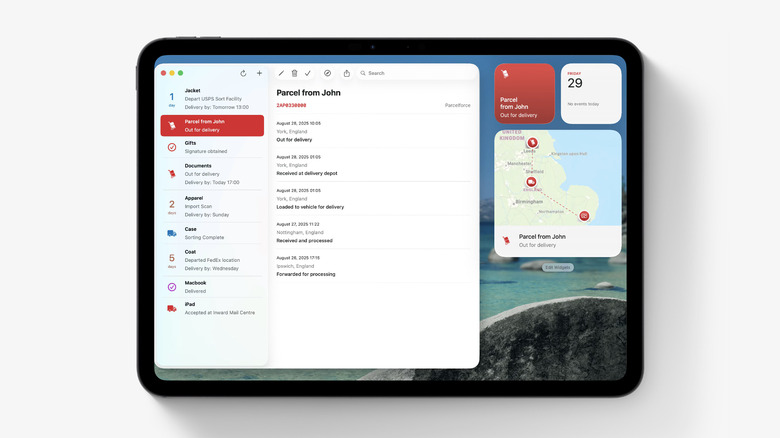
If you’re always waiting on a package, Parcel‘s widget is great for showing upcoming deliveries without opening the app. It supports up to 300 delivery services, including UPS, USPS, FedEx, DHL and Amazon Logistics, and there’s also a map widget in different sizes that shows where a package is.
Getting deliveries into the app is easy. By connecting your Amazon account, orders are added automatically, which means no copying and pasting tracking numbers. For everything else, you can scan a shipping label’s barcode with the built-in scanner instead of typing out a long tracking number.
Parcel isn’t limited to your iPad, either. It has a native Mac app, and you can manage your deliveries from any browser through Parcel’s web access, so your packages follow you across devices. The free version can only track three deliveries at a time and doesn’t include push notifications. To remove those limits, you’ll need a Premium subscription for $6.99/year.
2. Home, for one-tap control of your smart home (Built-in)
 Ali Salman Zia for Engadget
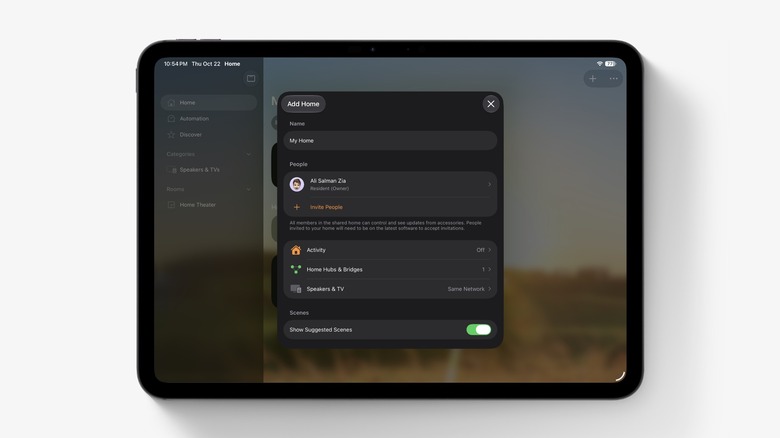
Instead of launching the Home app every time you need to make a quick change, its widget lets you take quick actions like switching lights on/off. It’s one of Apple’s interactive widgets, meaning it can perform a task without opening the app. It also works for locking and unlocking garage doors, as long as you have a HomeKit-compatible controller.
You have full control over what the widget shows. Simply touch and hold it, tap Edit Widget and pick the accessories and scenes you want it to display. Using this, the bedroom lamp or scene that turns everything off at night stays within reach, while accessories you rarely touch stay out of the way.
The widget works with smart accessories like bulbs, LED strips and smart plugs, and what you can control depends on the accessories you own. It’s built for simple on and off actions, though; you still have to open the app to adjust values like brightness and color, or setting the thermostat. For quick toggles from the couch, however, it’s much faster than digging through rooms in the app.
3. (Not Boring) Weather, for a forecast that looks like a game (Free | $14.99/year)
 Ali Salman Zia for Engadget
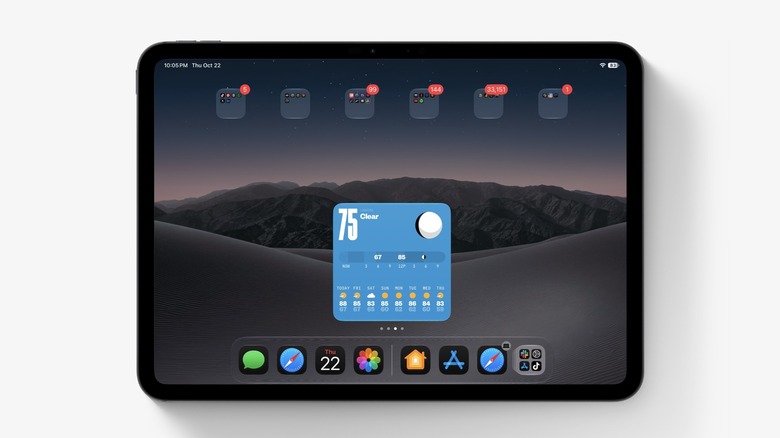
This isn’t your typical weather forecast widget. (Not Boring) Weather is built around a 3D, video game-inspired design with interactive visuals, giving your Home Screen some character. The widget can show details like temperature, conditions, precipitation, UV index and wind, and it’s available for the Lock Screen as well as the Home Screen.
The design is playful and the data comes from established sources like Apple, AccuWeather, Foreca, and the National Weather Service (adjustable in the app’s settings menu). It also covers severe weather alerts for heat waves, storms, flood risk, hurricanes and blizzards, so the fun visuals don’t come at the expense of safety information.
According to its App Store privacy label, the developer doesn’t collect any data from the app. It’s free to use, but its real-time weather widget requires a membership, which costs $14.99 per year. The subscription also adds faster forecasts and extra data like air quality and pollen, plus new themes that change the entire look of the widget.
4. Find My, for keeping tabs on your devices, AirTags and people (Built-in)
 Ali Salman Zia for Engadget
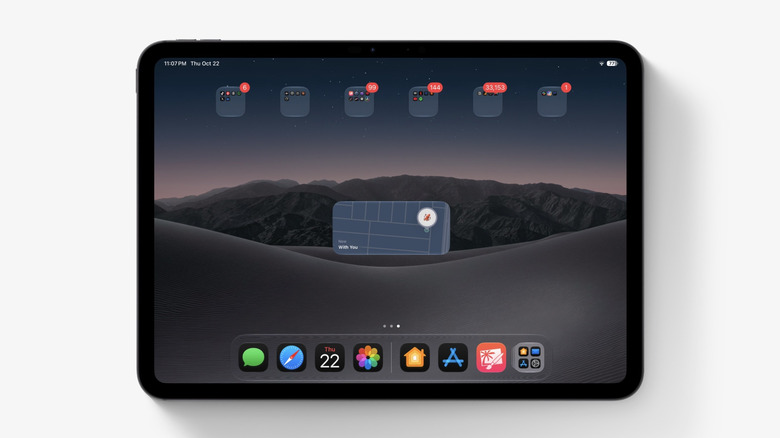
The Find My widget tracks your Apple devices, AirTags, third-party Find My items and trusted people right on the Home Screen. Each one appears with its last known location, so you can see where your keys or backpack were last spotted without opening the app and waiting for the map to reload. That comes in handy when you’re rushing out the door and can’t find your keys.
The app behind the widget is more capable than you think. Find My can locate devices even when they’re offline or powered off by using the Find My network. This relies on nearby Apple devices to anonymously and securely share their location. You can also turn on Notify When Left Behind, which alerts you if you leave a device somewhere unfamiliar.
5. Endel, for starting a focus or sleep soundscape (Free | $6.99/month)
 Ali Salman Zia for Engadget
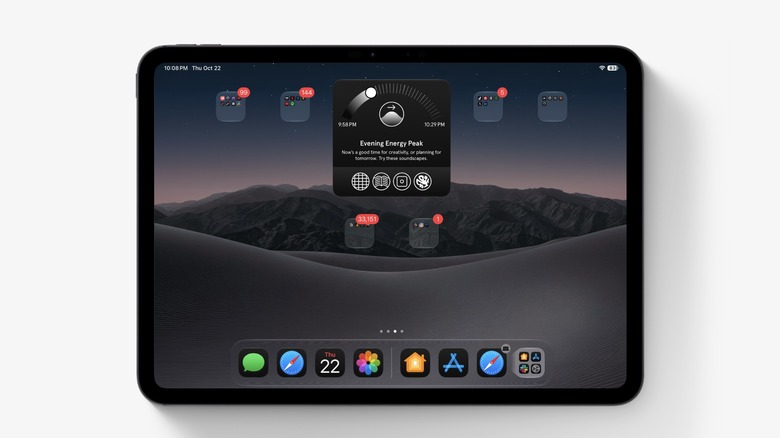
Endel creates AI-powered soundscapes to help you focus, relax or sleep, and it adjusts them on the fly to help with your circadian rhythm. Its widgets give you quick access to the app’s modes from the Home Screen, so you can start a soundscape in one tap.
This makes Endel’s widget especially appreciated on an iPad that doubles as a work or study device. Instead of hunting for a playlist before starting your session, begin a focus soundscape straight from the Home Screen and get to it. All soundscapes are also available offline, so the app keeps working on a flight or anywhere without a reliable internet connection.
The free edition of Endel includes four classic soundscapes: Focus, Sleep, Relax and Move. Each free session is capped to 10 minutes, though you can restart as often as you want. A premium subscription unlocks the rest of the library: Colored Noise with nine colors to choose from, Dynamic Focus, artist collaborations and Spatial Orbit, which is an immersive Spatial Audio experience. The premium tier also adds Focus Timer, which joins Endel’s focus sounds with timed work sessions. It’s available as a subscription or a one-time lifetime purchase; prices on the website are cheaper than App Store subscriptions, with “special discounts” often available.
6. Mail, for keeping VIP email front and center (Built-in)
 Ali Salman Zia for Engadget
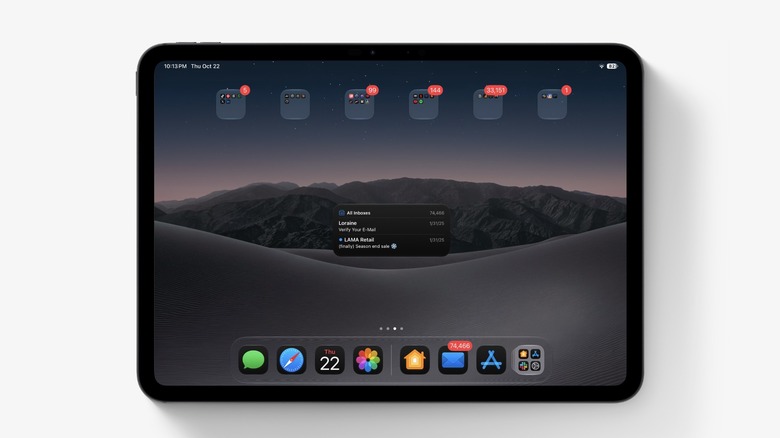
Apple’s stock Mail widget has more capability than showing your inbox. You have the option for it to display recent unread emails, messages from your VIP list or any other mailbox. Tapping an email in the widget will open that message directly in Mail.
The VIP option suits anyone who primarily cares about emails from a handful of people, like a manager, a client or a child’s school. Once those senders are marked as VIPs, their messages sit on your Home Screen instead of getting buried under newsletters and promotions.
Adding someone to your VIP list takes only a few seconds. Open an email from the person in question and tap the header with the sender info. Then tap the sender’s name and choose View Contact Card, followed by Add to VIP on the resulting screen. Repeat for everyone whose emails you never want to miss, then all these people will appear up in Mail’s VIP mailbox across the widget and app.
7. Widgetsmith, for designing your own widgets (Free | $1.99/month)
 Ali Salman Zia for Engadget
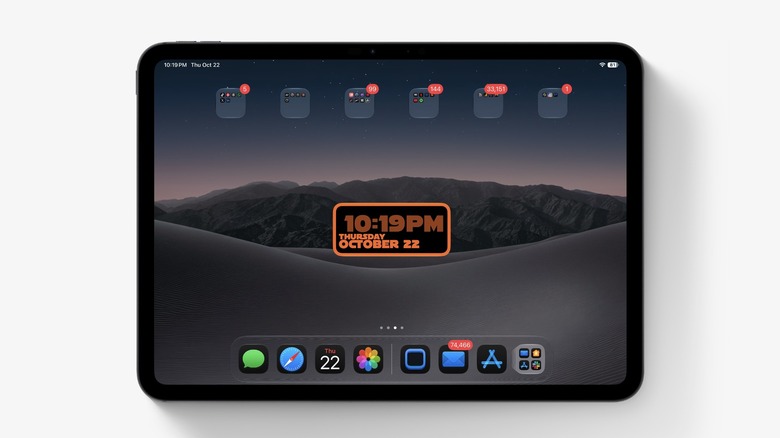
If no existing widget looks quite right on your iPad, Widgetsmith lets you design your own. You can craft widgets for the date, time, weather, calendar, reminders and photos, then adjust the fonts, colors and layout to match your Home Screen. It can customize your Lock Screen as well, so both screens share the same aesthetic.
The standout feature of this widget is scheduling. Widgetsmith is able to show different widgets at different times of day, so the same spot on your Home Screen could show the weather in the morning and your calendar during work hours. Recent updates added clear and frosted styles so your wallpaper shows through, plus a photo background that places an image behind a widget.
Widgetsmith also includes a built-in weather tool with air quality, pollen and tide information, though that requires a premium subscription (starting at $1.99 a month).
8. Screen Time, to keep your scrolling in check (Built-in)
 Ali Salman Zia for Engadget
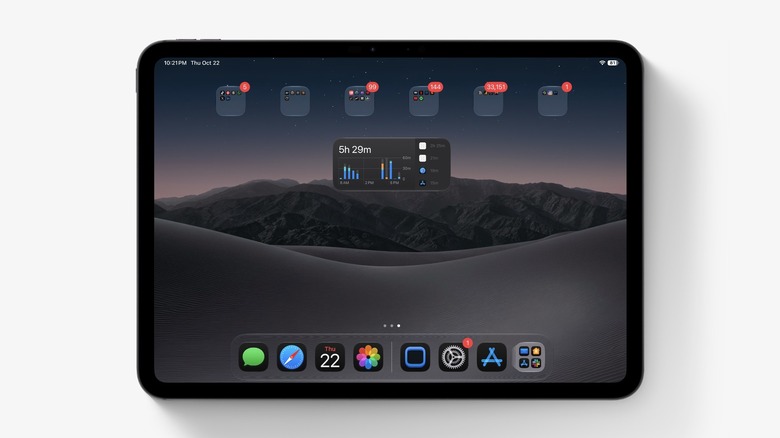
It’s easy to lose an hour to doomscrolling without noticing. To keep an eye on this, the Screen Time widget offers a reality check on the Home Screen or in Today View without having to dig through Settings. The smaller size simply shows your daily total, while the larger option adds a rundown of the apps and categories you’ve spent time on.
The widget is more useful with iPadOS 27, as it adds Schedules and Time Allowances. Time Allowances put a cap on the amount of time you can spend in categories like Entertainment, Games and Social Media, while Schedules control which apps are available at different times of the day.
This makes the widget particularly helpful for parents setting up an iPad for their kids. A quick glance shows whether the cartoons have run long, and the new limits come in handy to cut off excess usage automatically.
9. Craft, for keeping your notes and to-dos in view (Free | $9.99/month)
 Ali Salman Zia for Engadget
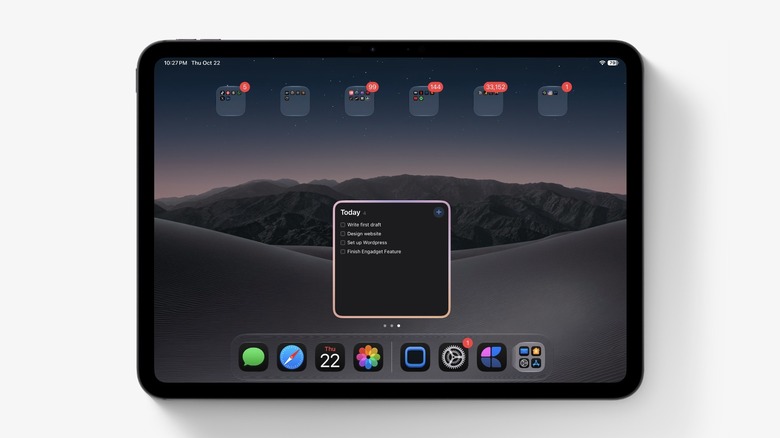
Craft is a docs and planning app in the same vein as Notion, and its widgets go further than most. You can pin a specific document for one-tap access, show a list of Recent Documents, or keep a Tasks widget in view and check off to-dos without opening the app. Lock Screen widgets add shortcuts for quick actions, like creating a document or starting a Quick Entry.
Craft is built around Daily Notes for planning your day, and a dedicated Daily Note widget keeps yesterday’s, today’s or tomorrow’s note a tap away.
If you keep your work and personal notes separate, Craft’s widgets respect that. Each widget can be set to a specific Craft Space, so you could keep your work tasks on one widget and personal documents on another. Craft’s widgets are also available on iPhone and Mac.
The setup works especially well on iPad, where you can fit multiple Craft widgets side-by-side without crowding the Home Screen. For instance, you might set up a Tasks widget next to a Daily Note widget, making the Home Screen your simple planning dashboard.
The app is free, but there’s a premium subscription (available monthly or yearly) that unlocks all features and removes some limits.
10. Journal, for a daily nudge to write (Built-in)
 Ali Salman Zia for Engadget
Many iPad owners overlook Apple’s Journal app. It arrived with iPadOS 26, and is arguably a better fit there than on iPhone, since the bigger screen gives you more room to write and jot down your ideas. On iPad, you can type with the on-screen or a physical keyboard, or handwrite entries and add sketches with an Apple Pencil.
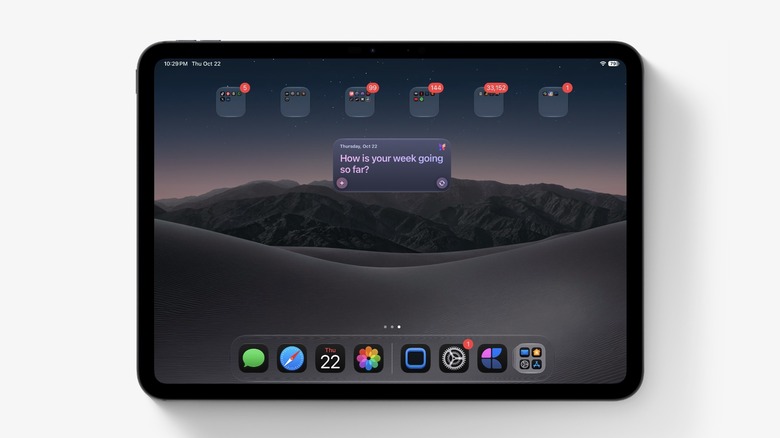
The Journal widget brings that habit to your Home Screen. It can show your current streak or surface writing prompts that change throughout the day, and that small prompt makes it easier to build a journaling habit without hunting for the app. iPadOS 27 added more control over writing streaks, letting you track them daily or weekly.
The app is flexible: you can keep multiple journals for different parts of your life, such as one for travel and another for work purposes. Since journals are personal by nature, you can lock the app with Face ID, Touch ID or your passcode so nobody can read your entries.

